
Give your vocal some character.
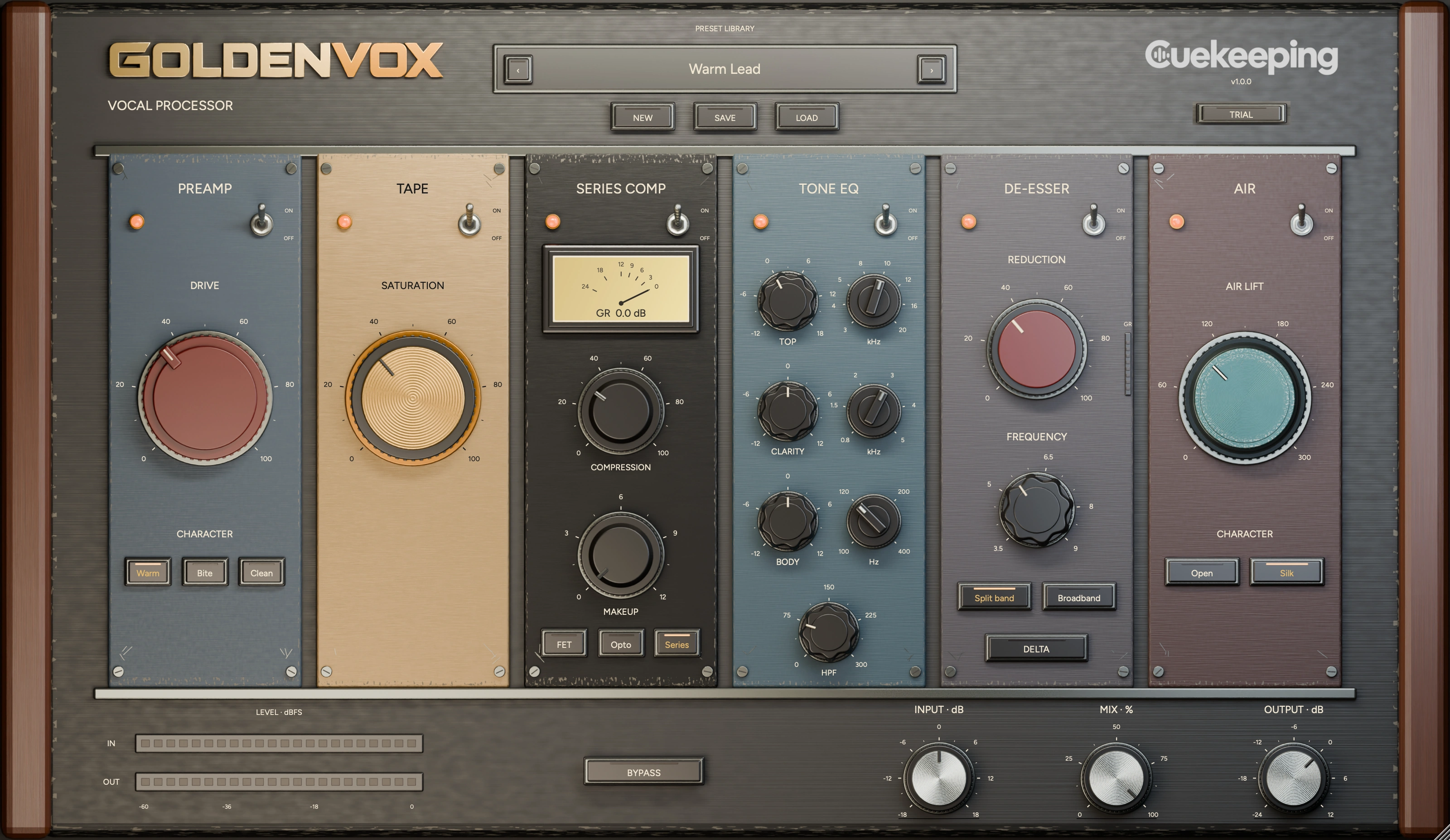
GoldenVox is a vocal processor with preamp and tape saturation, FET and opto compression, tone EQ, de-essing and Air. Shape your vocal in 1 strip.
Choose your
format.
Try every feature free for 14 days. No card required. Open GoldenVox in your DAW and verify your email to start its own trial.
Mac
macOS 12 or later. One signed, notarized installer includes AU and VST3 for Intel and Apple Silicon.
Windows
Windows 10 or later for x64; Windows 11 for native ARM64 / ARM64EC. Choose the architecture that matches your DAW. Windows installers are unsigned.
Every package includes its installer and user manual. Read the manual.
Mac · Windows x64 · Windows ARM
GoldenVox
Choose your platform.
Choose the installer that matches your computer and DAW. Each download includes the user manual.
Using an x64 DAW on Windows ARM? Choose Windows x64. Native ARM DAWs use the Windows ARM package.
See it in action
GoldenVox walkthrough
From a clean take to a shaped vocal
Add drive at the preamp and tape stages, control the peaks, then shape the tone. Each stage has its own bypass.
Keep the original vocal in reach
Use the global Mix to blend the processed vocal with the dry signal. Input and output trims help you compare at a similar level.

6 stages.
Your vocal.
Preamp
Choose Warm, Bite or Clean, then set the drive for your vocal.
Tape
Add a separate layer of saturation after the preamp.
Compression
Use FET for fast peak control, Opto for slower leveling, or Series to put both in the signal path.
Tone EQ
Cut low-frequency buildup with the high-pass filter. Choose frequencies for the Body, Clarity and Top controls.
De-esser
Choose Split or Broadband reduction. Use Delta to hear the signal being removed before Air, then turn Delta off to return to normal listening.
Air
Choose Open or Silk. Air adds more high-frequency lift to quieter phrases and less to louder ones.
Keep your
starting points.
Save user presets for a voice or a session. Switch individual stages off when you want to hear what they're adding, or use global bypass to compare the strip with your source.
Read about saturation, compression and de-essing in a vocal strip.
Your voice.
Your settings.
Open the activation panel and verify your email to start your 14-day trial. Use your purchase email when you own GoldenVox. Your license or trial covers up to 2 activated computers.
Save your settings as user presets. Input and output trims, individual stage switches and global Mix help you compare changes without losing the original vocal.
Read the GoldenVox manual for controls, presets and activation.
Build your
next chain.
Series vs. parallel effects in GoldenFX
Hear how effect order and parallel routing change a sound. Build a series chain or split paths with GoldenFX, then compare at a similar output level.
Insert vs. send effects in GoldenFX
Set up GoldenFX as an insert or a send return. Understand module Insert/Return behavior, the independent master dry path and parallel level changes.
Use GoldenVox and GoldenFX on a vocal
Shape vocal tone and dynamics with GoldenVox, then add delay, reverb or doubling with GoldenFX. Use 2 separate plugins from the Golden Bundle.
Before you get started.
What is GoldenVox?
GoldenVox is an audio effect for processing a recorded vocal. It combines Preamp, Tape, Compression, Tone EQ, De-esser and Air in that order.
How do FET, Opto and Series differ?
FET catches fast peaks. Opto follows the vocal more slowly. Series runs fast peak-catching compression into slower leveling.
What does Delta do?
Delta lets you hear the signal the de-esser removes before the Air stage. It overrides global Mix while engaged. Global bypass still takes priority.
Where can I get help?
Email support@cuekeeping.com with your plugin version, operating system, DAW and what happened.